Wallpapers & backgrounds
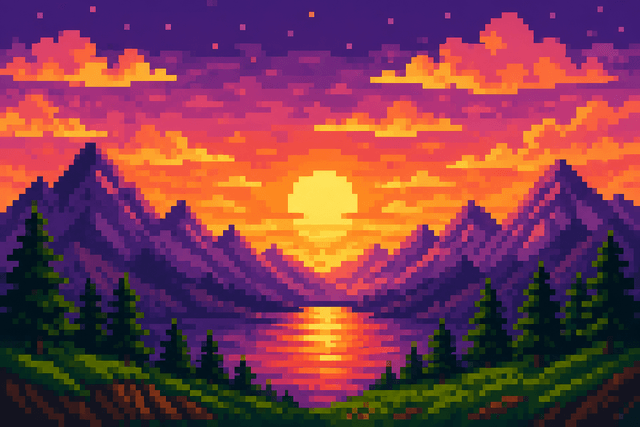
A favorite photo becomes a chunky retro wallpaper for your phone or desktop — match the palette to your setup.
Drop in a photo and turn it into real pixel art — set the Pixel Size, pick a retro palette like Pico-8, Game Boy, NES or Minecraft, and export a crisp PNG. Every step runs on your own device, so your image is never uploaded — convert a photo to pixel art in seconds, free and in your browser, no signup.
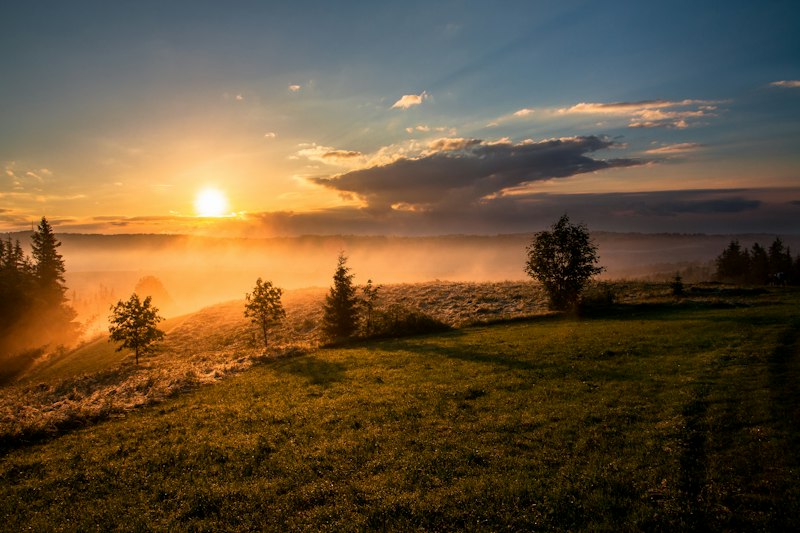


Converting a photo to pixel art takes four steps and a few seconds — no signup, nothing to upload.
Upload or paste a photo — drag it in, click upload, or Ctrl/Cmd+V.
Set the Pixel Size — small for fine detail, large for chunky mosaic blocks.
Pick a palette — a retro style like Pico-8 or Game Boy, or an auto palette with your own color count.
Export a crisp, upscaled PNG — or copy it straight to your clipboard.
Turn a photo into a blueprint you can actually build — in a game, on a pegboard, or in thread.
A favorite photo becomes a chunky retro wallpaper for your phone or desktop — match the palette to your setup.

Export a small, high-contrast pixel portrait for WhatsApp, Telegram, or Discord stickers — bold blocks stay readable even tiny.
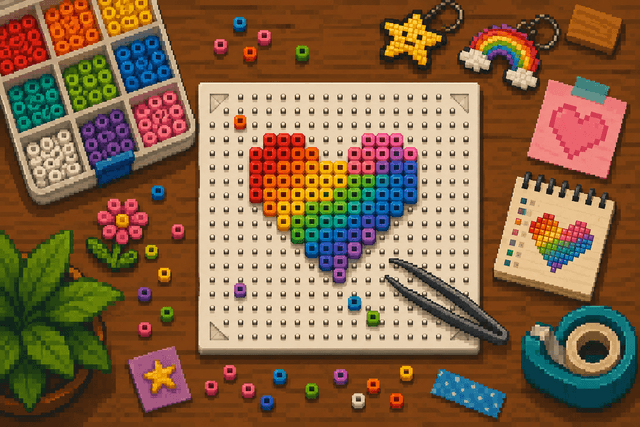
Each block becomes one bead — set a small Pixel Size, pick a limited palette, and rebuild your design on a pegboard, square by square.
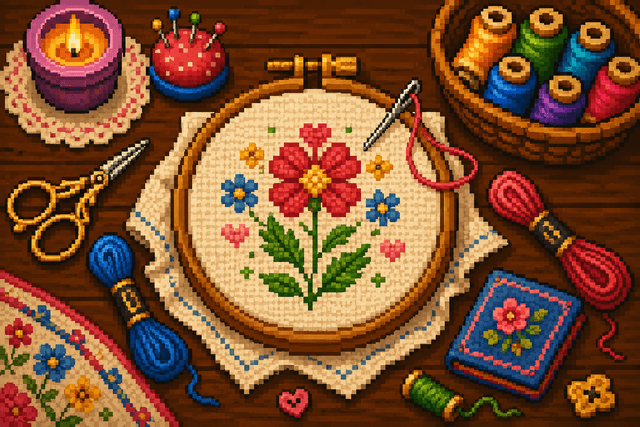
Low color counts become stitch charts: one square per stitch, the palette as your thread list.
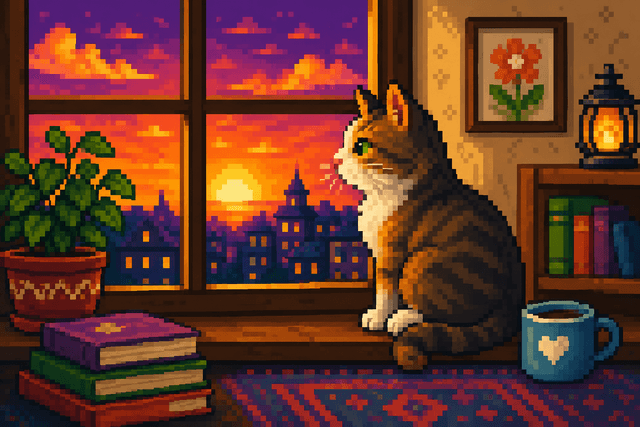
Turn a pet, family, or travel photo into a retro print worth framing — a gift no one else will have.
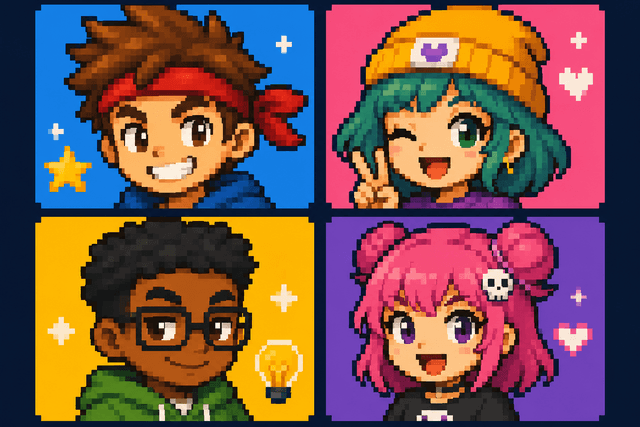
Make crunchy pixel profile pictures, Discord emotes, or stream badges from any selfie.
New to pixel art? It is the look of classic 8-bit and 16-bit games like the NES, Game Boy, and Commodore 64 — an image drawn on a small grid of square pixels using only a handful of colors. Converting a photo means shrinking it to a low-resolution grid, mapping each block to the nearest palette color, and upscaling with nearest-neighbor sampling, so it reads as clean, deliberate pixels instead of a blurry mosaic — the same hand-made, retro feel without placing a single pixel by hand.
Upload or paste a photo, then drag the Pixel Size slider to control how chunky the mosaic looks — a small Pixel Size keeps fine detail, a large one gives bold, retro blocks. Pick an auto palette built from the colors in your own image, or a classic retro palette like Pico-8, Game Boy, NES, Commodore 64, or Minecraft. Fine-tune brightness, contrast, and saturation, use the before/after slider to compare, then export a crisp PNG — all in your browser, no signup.
We downscale, snap each block to a palette color, then upscale with nearest-neighbor sampling, so edges stay hard instead of smudged.
Yes — pick the Game Boy palette for the classic 4-shade green, or Minecraft for block-inspired colors. You can also convert a photo to Pico-8, NES, or Commodore 64 style, drop to a mono palette, or let the auto palette pull colors straight from your own image for a custom retro look.
No. Your image never leaves your device — the converter runs 100% in-browser, so uploads, adjustments, palette matching, preview, and export all happen locally.
Yes — it is completely free, with no signup, no watermark, and nothing to install. The whole image to pixel art converter runs in your browser, so every step from reading the file to rendering the final PNG happens on your own device, and your photo never leaves your computer or phone.
Yes — the image to pixel art converter accepts JPG, PNG, WebP, and GIF. Drop the file in and it is converted right on your device, with nothing uploaded to a server.
Pick the Minecraft palette and set a small Pixel Size, then rebuild the resulting blocks in-game, one block per pixel. The same approach turns a photo into a blueprint for Perler beads, a cross-stitch chart, a retro game sprite, or a chunky pixel avatar — just match the palette and grid to whatever you are building.
Yes — it is a web app that runs in any modern mobile browser. Upload a photo from your camera roll and export the pixel art straight to your device.
A lower Pixel Size keeps more detail; a higher one makes chunkier, more retro blocks. Start around 2 and drag the slider until it looks right — pair it with the before/after slider to compare against the original photo, and turn on the grid overlay when you want to see each block clearly.
Yes — upload a selfie or headshot, raise the Pixel Size for a chunkier, more retro look, pick a palette you like, and export the PNG. The result works well as a profile picture, Discord avatar, or stream badge, and because everything runs in your browser the original photo never leaves your device.
Use a small grid and a low Max Colors count so each block maps cleanly to a single bead or stitch, then turn on the grid overlay to see the block boundaries. Pick a palette that matches the beads or thread you have on hand, and read each block off the preview as you place it, one square at a time.